When an employee is terminated or leaves your company, the cleanest way to resolve their access is to reset the PC that they were using to access your resources. This does three things.
1) It removes the terminated employee's account from the PC.
2) It removes any custom software they may have been allowed to install and all of the data from their personal devices that may have made it to the PC. This is important to prevent you, the business owner from landing in a situation of liability where you have access to personal data that the former employee may not want you to have access to. Employees generally are not careful with their personal data on employer devices. This can inadvertently expose the employer and the subsequent user of the device to access to protected information such as credit card data saved to the computer during an Amazon purchase or health care data. Resetting the PC ensures this liability is not there.
3) The new employee is working from a clean installation. The two hours spent resetting the PC and installing required software will save hours of support calls troubleshooting why both Microsoft accounts are not playing nice on the same PC.
To Reset your PC, follow these steps.
1) Log in to the computer. If you cannot login and get to a desktop, it will likely require a support ticket to be submitted for one of our techs to help you get access to the computer. In this case, send an email to support@elysinaonline.com requesting help resetting the PC.
2) Click the Start button and type "Reset this PC".
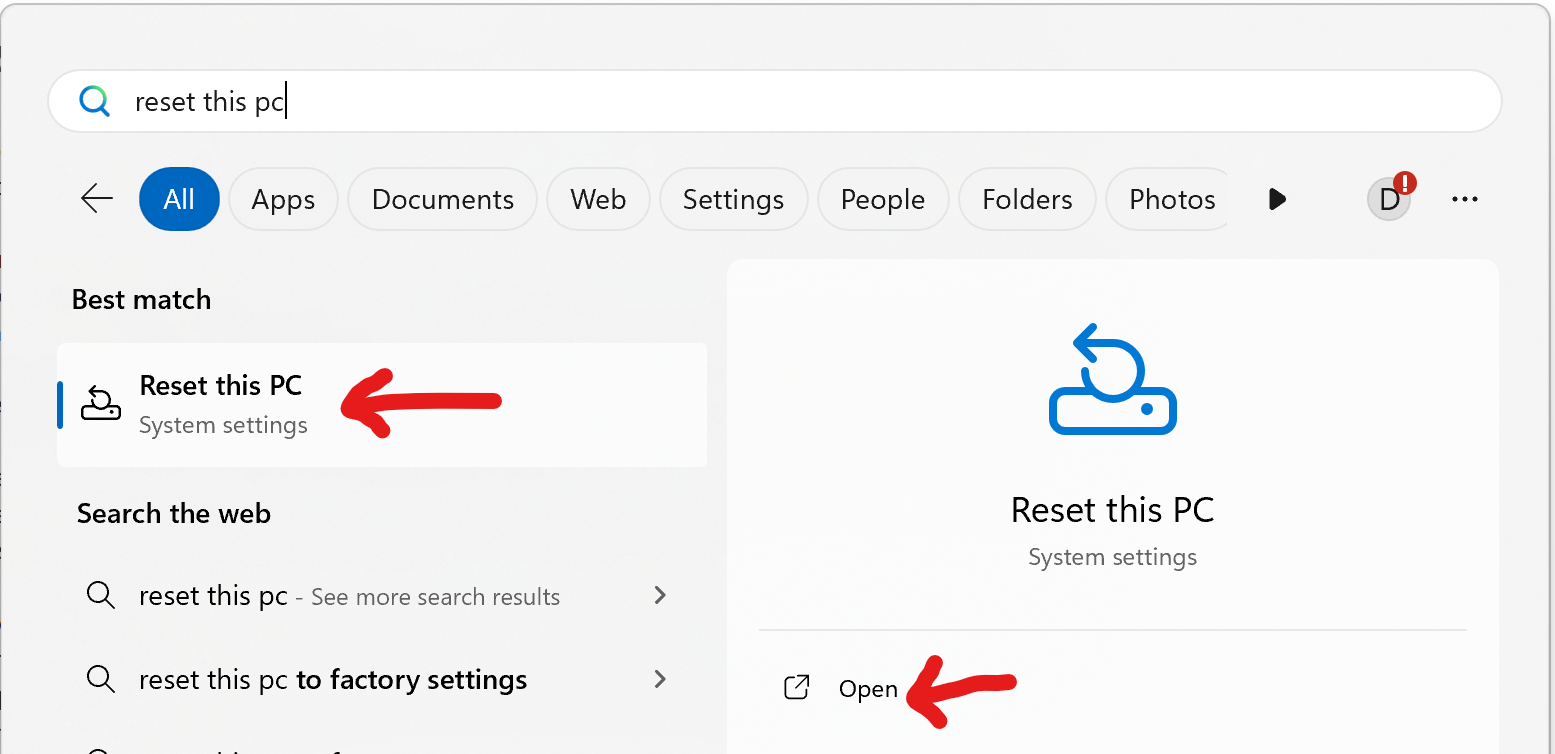
Select the "Reset this PC", system settings app or click open. Either of the buttons above will work. This will launch the reset process.
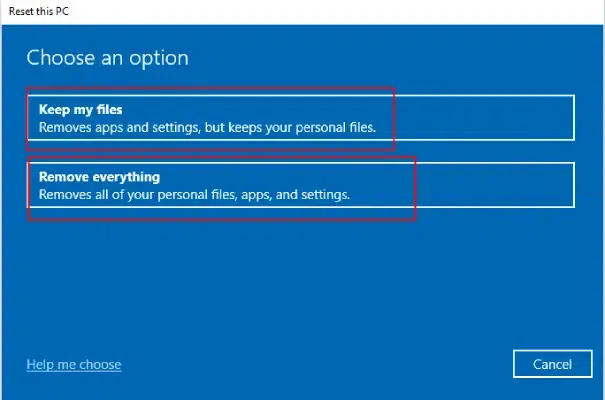
Choose remove everything.
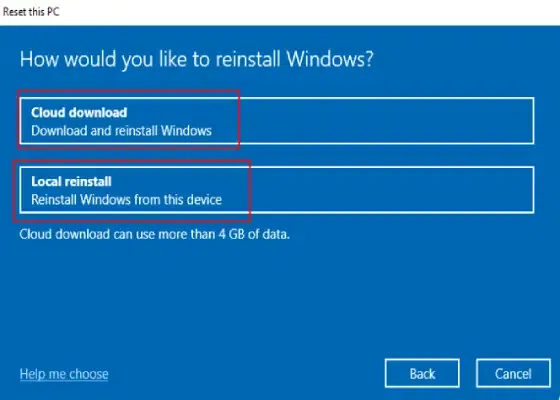
Choose Cloud Download if you are connected to the Internet, otherwise choose local reinstall.
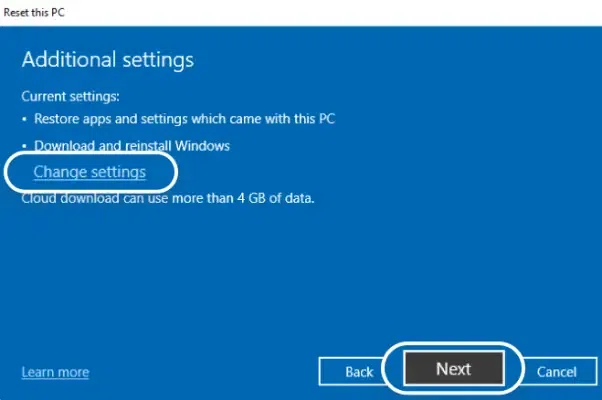
Choose Next. If you change your mind about your Internet Connectivity, you can click back or use the Change Settings button. Generally, just click next.

Uncheck "Restore preinstalled apps?" In our experience this rarely works as expected for anything other than Microsoft Office. The next user to use the PC may not have the same permissions as the former user so we find it is best to just start over. Shortcutting the process, almost always results in support calls.
Click Confirm
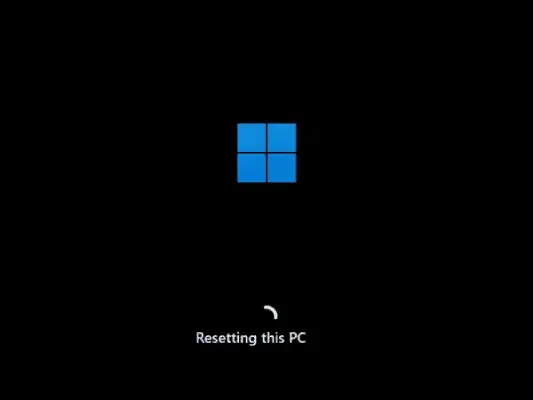
At this point, Windows will reset itself. The process can take between 45 minutes and multiple hours depending on how up to date the PC was before reset and the connection speed of your internet connection. DO NOT cut power to the PC during this process. Doing so will risk damage to the PC. When the PC is back online, it will be just like you took the PC out of the box and turned it on for the first time.
EPI is always here to assist should something unexpected happen. Please reach out to support@elysianonline.com if you have any issues.
Was this article helpful?
That’s Great!
Thank you for your feedback
Sorry! We couldn't be helpful
Thank you for your feedback
Feedback sent
We appreciate your effort and will try to fix the article