One of the first things that you will be required to do with your new Microsoft account is login. Microsoft has made numerous policy changes over the past few years to combat SPAM and increase account security. One of these is Two Factor Authentication. It is now required for all accounts in every Microsoft 365 organization. The procedure below will walk you through the most common setup. It does not cover the following though EPI support is here to assist in any of these scenarios should you find logging in to be problematic.
- This is not the first Microsoft 365 account on the computer. Often times this happens because the computer is shared with someone that is in school or there is another company providing Microsoft 365 to its employees/contractors. Microsoft fully supports this scenario on all operating systems, however, there are times where one company's policies/security setup will get in the way of successfully setting up your new Microsoft account.
- You want to use an alternate authenticator application. Google Authenticator and Duo are fully supported as are many third-party authenticators that you may have chosen or been forced to use. Microsoft Authenticator will run side by side with these or you can use the one-time passcode feature of these alternative authenticators to secure your Microsoft account. This article assumes you are using the Microsoft Authenticator published by Microsoft Corporation.
Navigate to https://portal.office.com/. Save the address in your favorites as this is the web site that you will return to for all of your file and communication needs. At any time, you can send an email to support@elysianonline.com if you are having issues completing this process. Once you are connected to Microsoft 365, you can also reach out on Microsoft Teams to get in touch with our support team.
Log in to your account using the password provided to you by your employer.
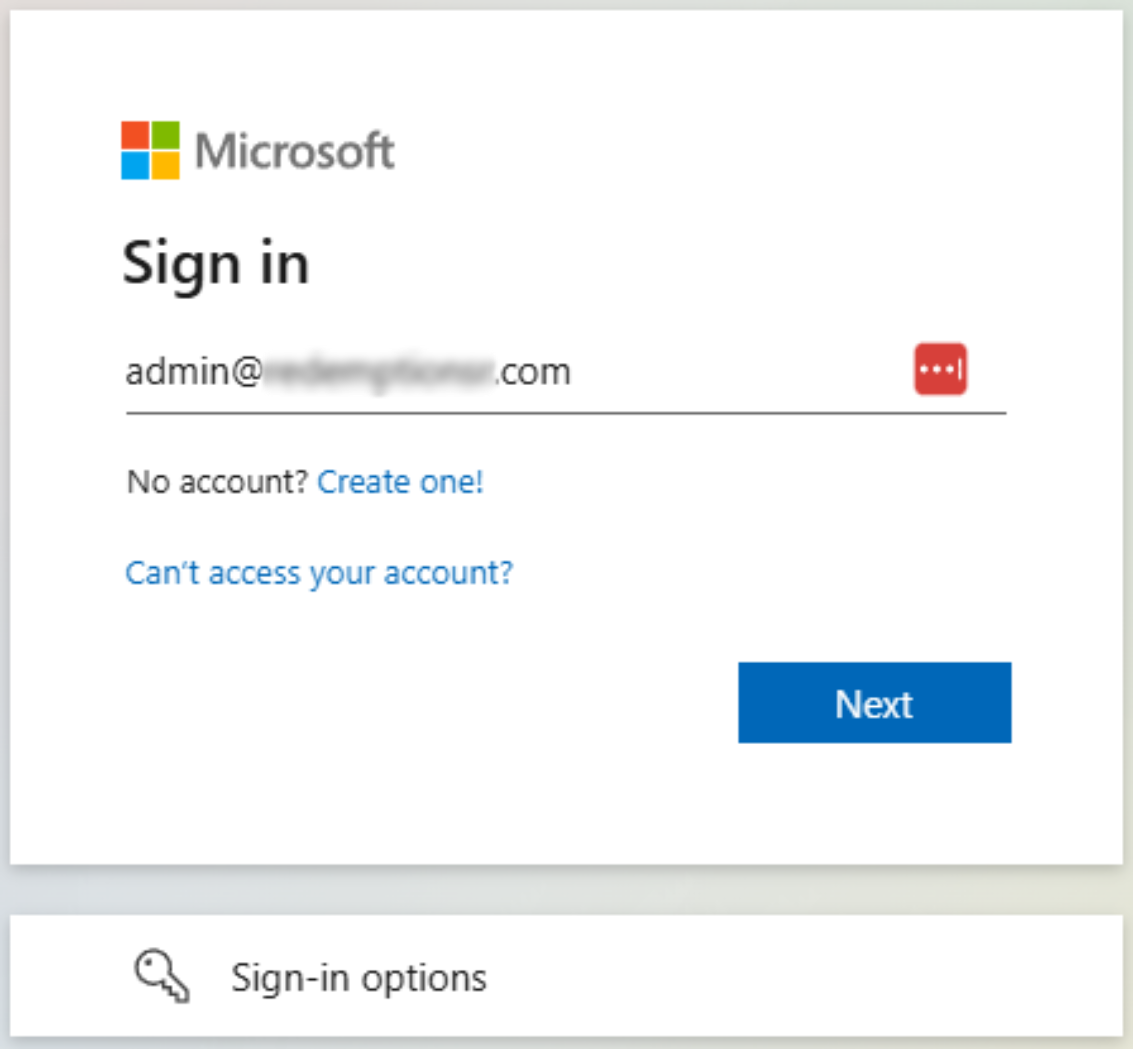
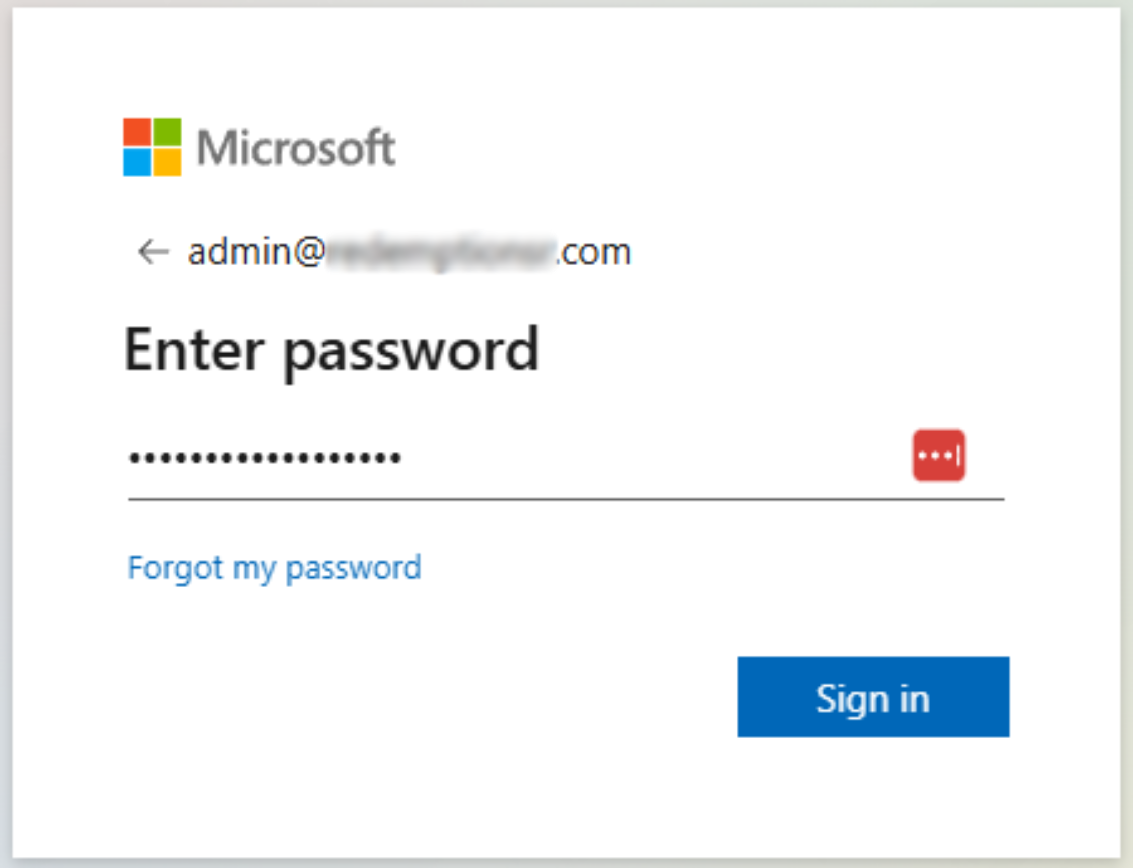
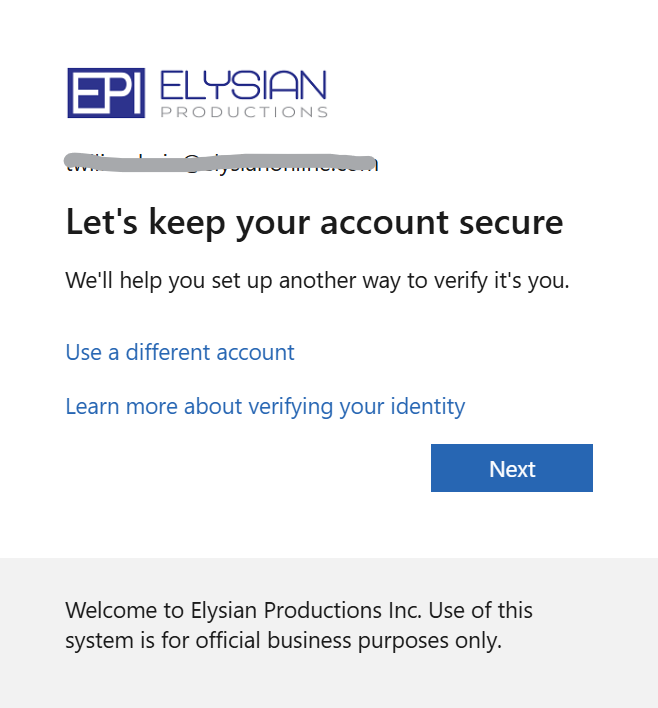
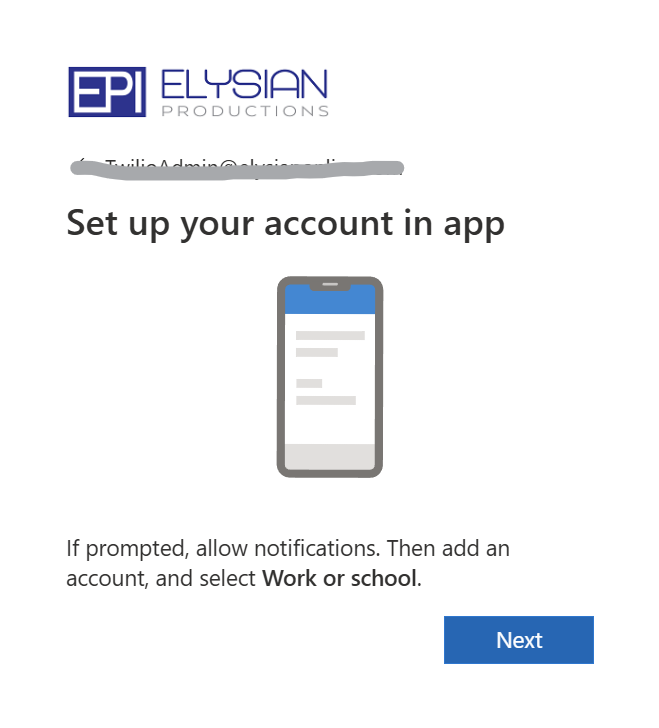
The next few steps will require your cell phone to complete. Microsoft, as of Sept 2024, no longer allows two factor authentication to be optional It is required for all new and existing Microsoft 365 organizations. When you see the following screen, click Next and follow the instructions on the page until you see a QR code. These steps will direct you to download on your cell phone, the Microsoft Authenticator application. If you would like to use a different authenticator application, you can follow the prompts under "I want to use a different authenticator app" but this set of instructions assumes that you are using the Microsoft Authenticator.
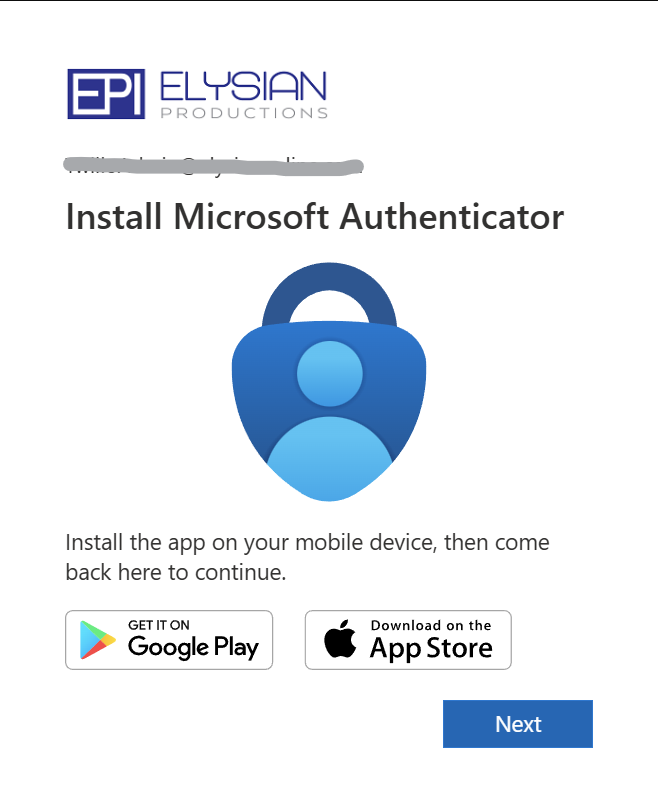
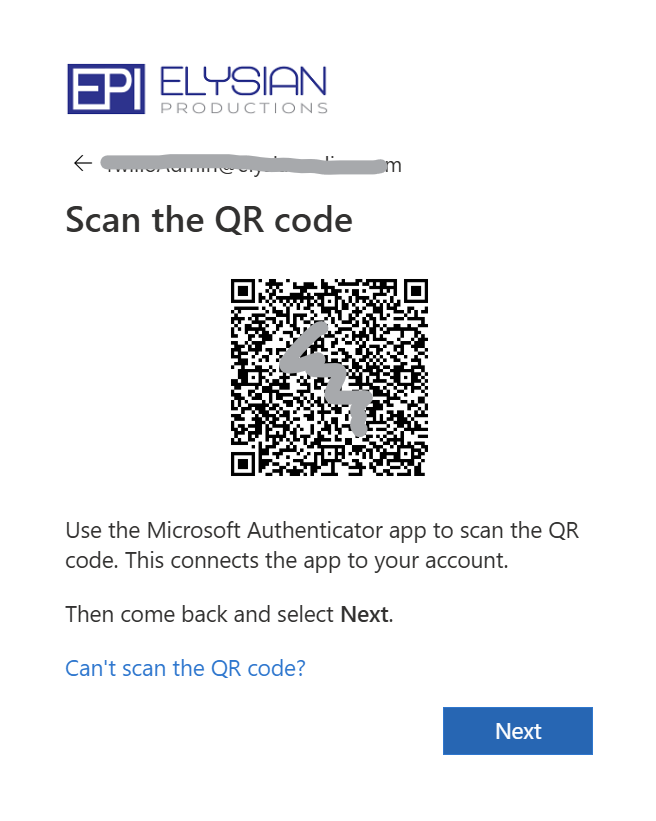
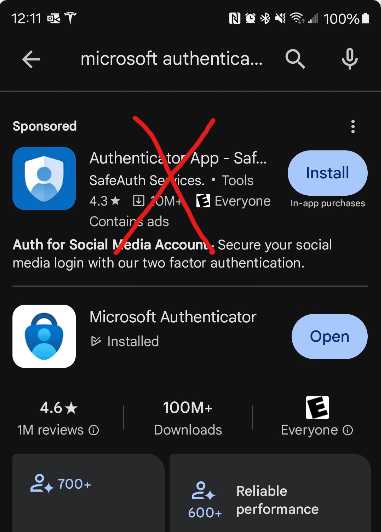
Once you get to this screen, open your phone and navigate to the Google Play store or the Apple App Store. Search for "Microsoft Authenticator" and install the application. Please be aware that in both stores, there is currently an authenticator app that is not published by Microsoft outranking the Microsoft and Google authenticators. Choose the authenticator published by Microsoft Corporation.
IMPORTANT: When you first open the application and when you first try to scan the above QR code, the Microsoft Authenticator will ask you for permission to send you notifications and permission to use your camera. You must answer yes to these questions or the authenticator functionality will not work without going to your settings app on the phone and correcting the phone settings and permissions.
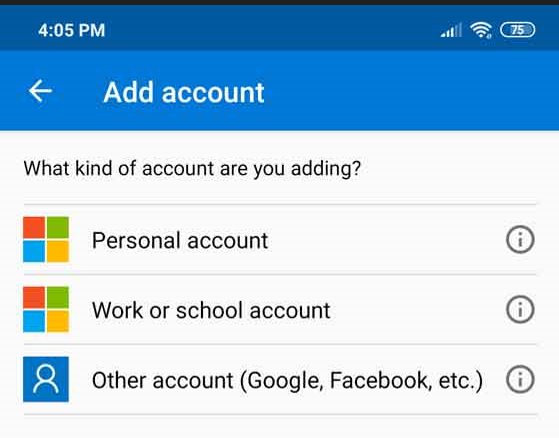
Once the application is installed on your phone, open it and you should be presented with the following screen. If you already have the Microsoft Authenticator on your phone from school or another company, you will only have the "+" option because this page becomes a list of registered accounts after the first account is created.
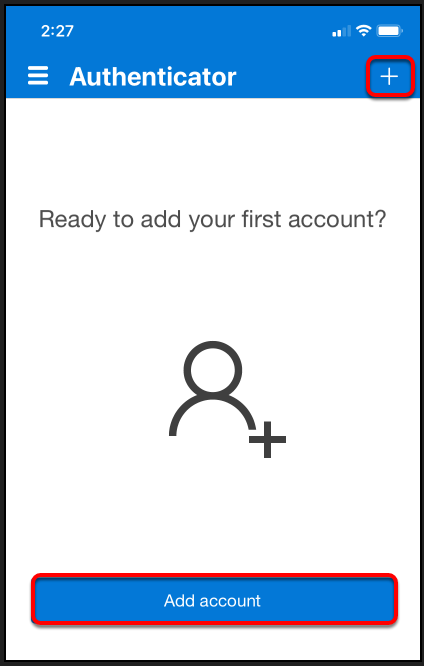
Select Add Account or click the "+" sign. Then select "Work or school account" and finally "Scan a QR Code".
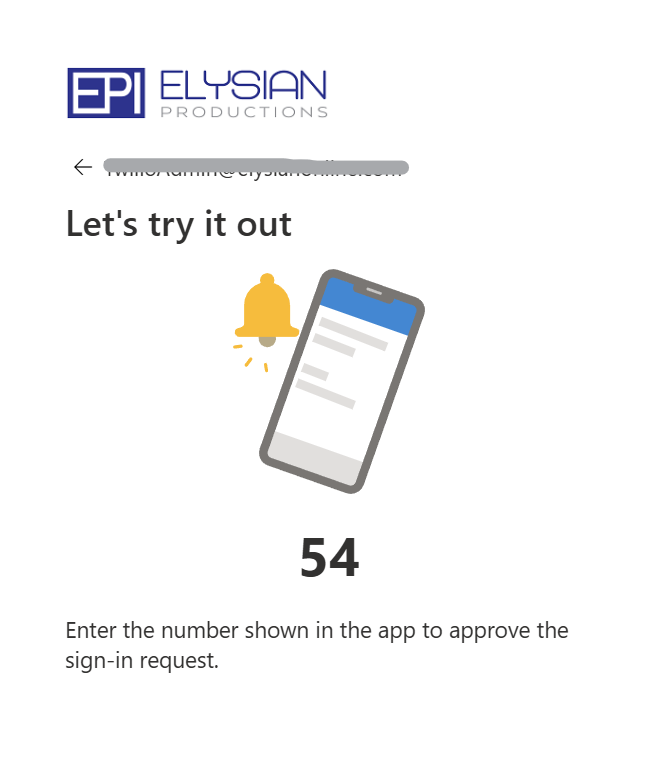
Aim your phone at your PC screen and scan the QR code. You should receive a notification on the authenticator application that the account has been registered successfully. Go back to your PC and click Next. You will receive a prompt on your cell phone asking you to enter a number and press "Yes" within the Microsoft Authenticator application.
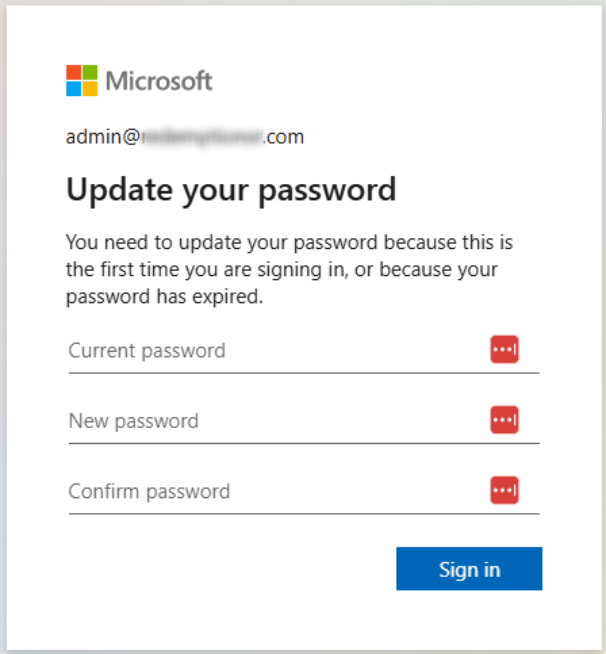
You will be asked to change your password. Change it to something you can remember, write it down or save it to a password manager such as https://1password.com or https://lastpass.com. There are other password managers as well as the built-in password managers for Chrome, Safari and Edge. These all work well enough for this purpose and we encourage their use. EPI does not know your password once you change it. We will never ask you for your password. If you do not remember your password, the only option will be to reset your password by using the "Forgot my password" link in the above image.
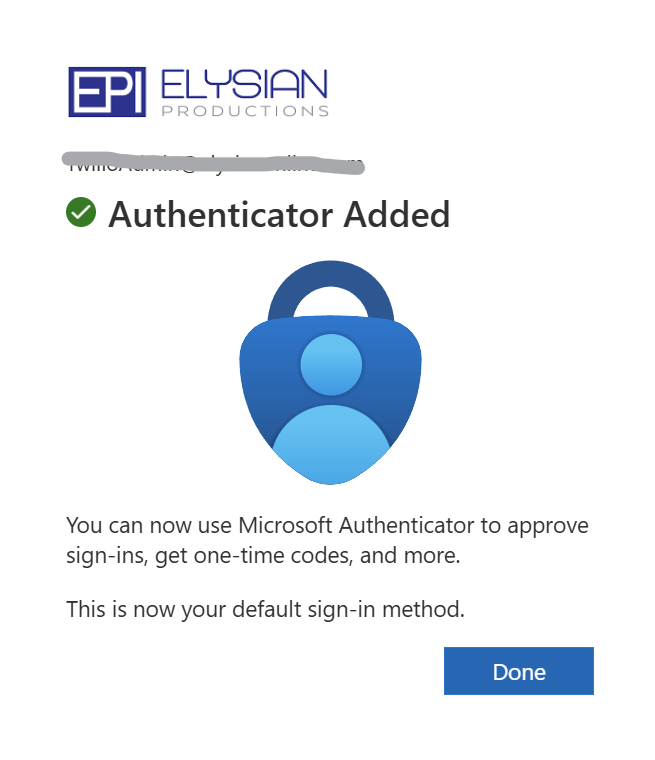
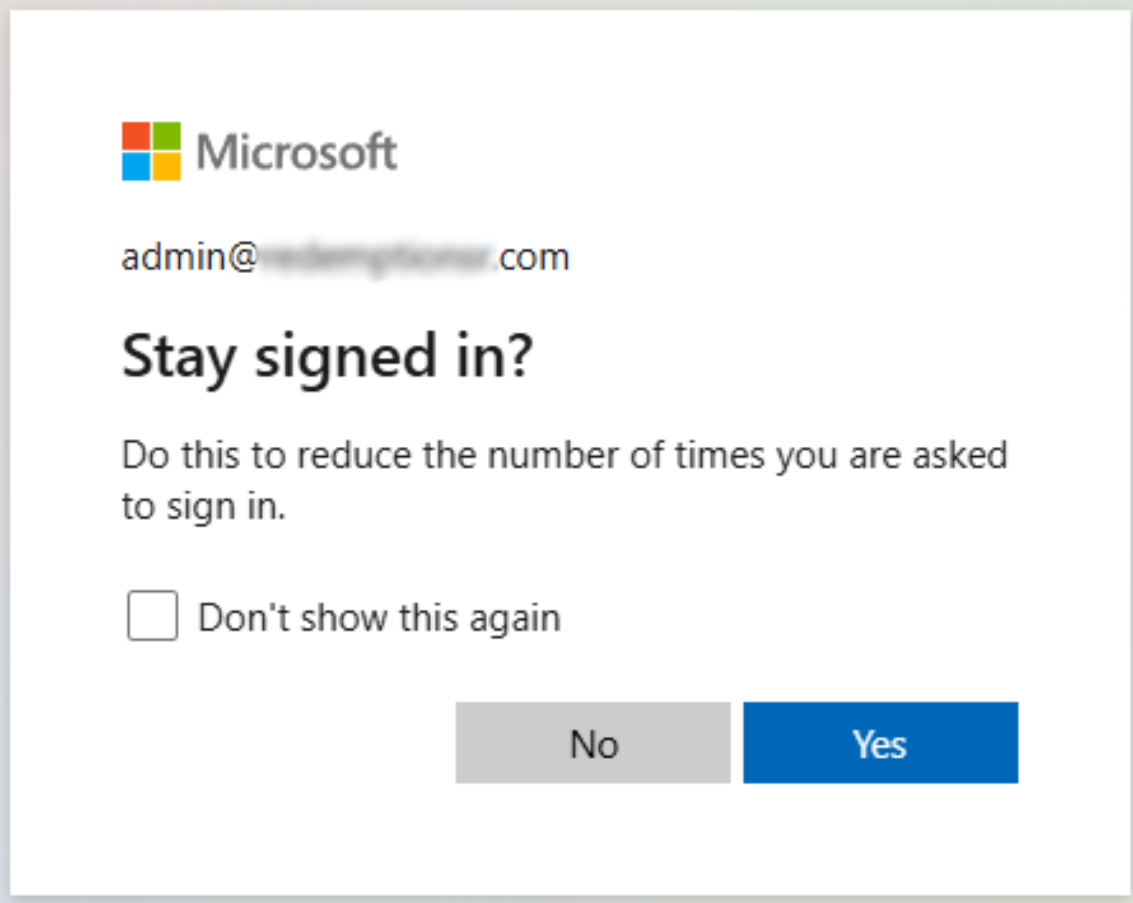
Click Next and then Done and you are registered. The site will ask you if you want to stay signed in on this device. Answer "Yes" if you want fewer two factor authentication challenges and you trust the device that you are using. Answer "No" whenever you log into your account from a computer outside your organization.
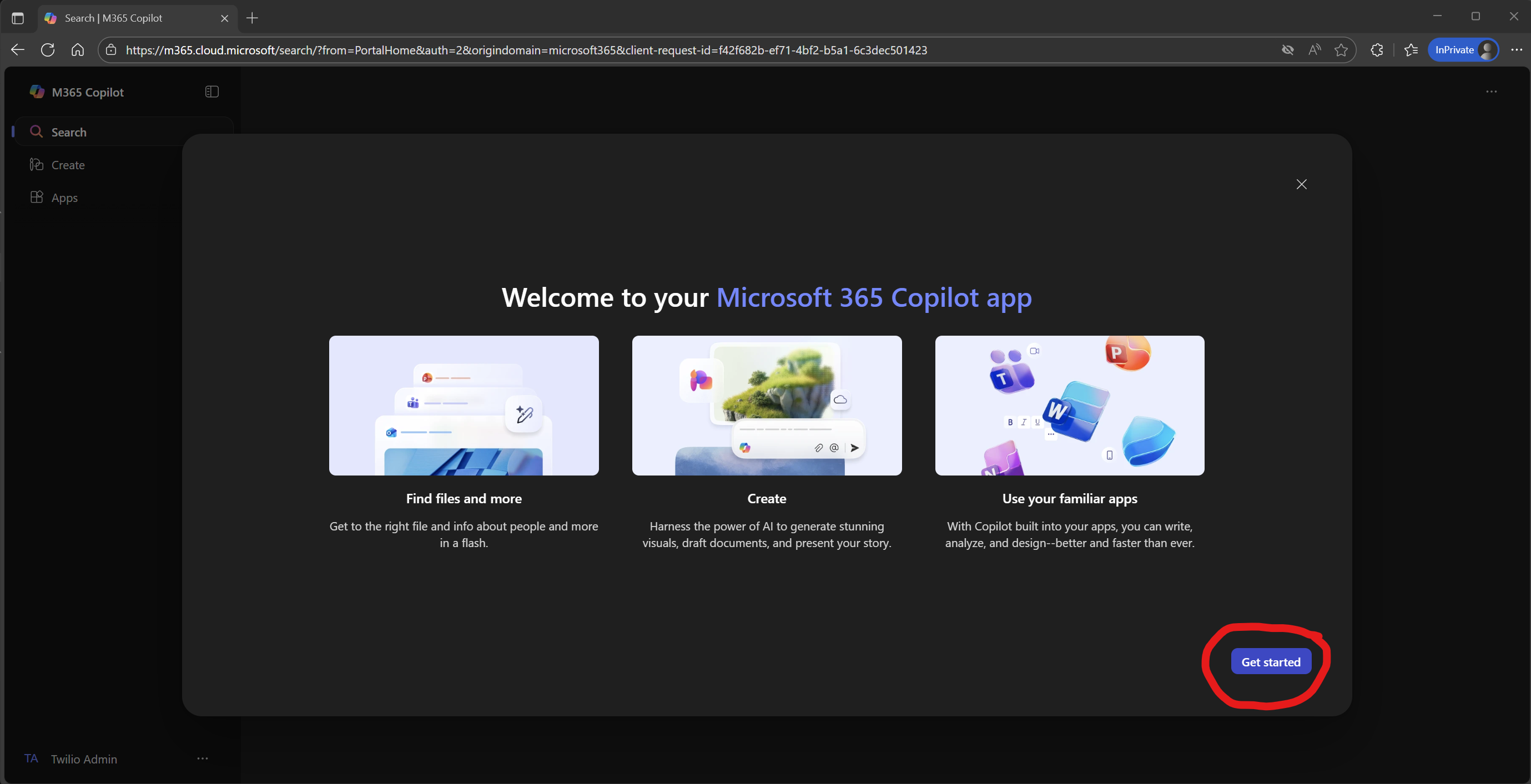
Welcome to Microsoft 365. Microsoft is all in on AI using their system called Copilot. Copilot is an AI assistant that is optional and can be enabled. It is a paid service so feel free to skip it for now. It is not critical for your initial use of Microsoft 365.
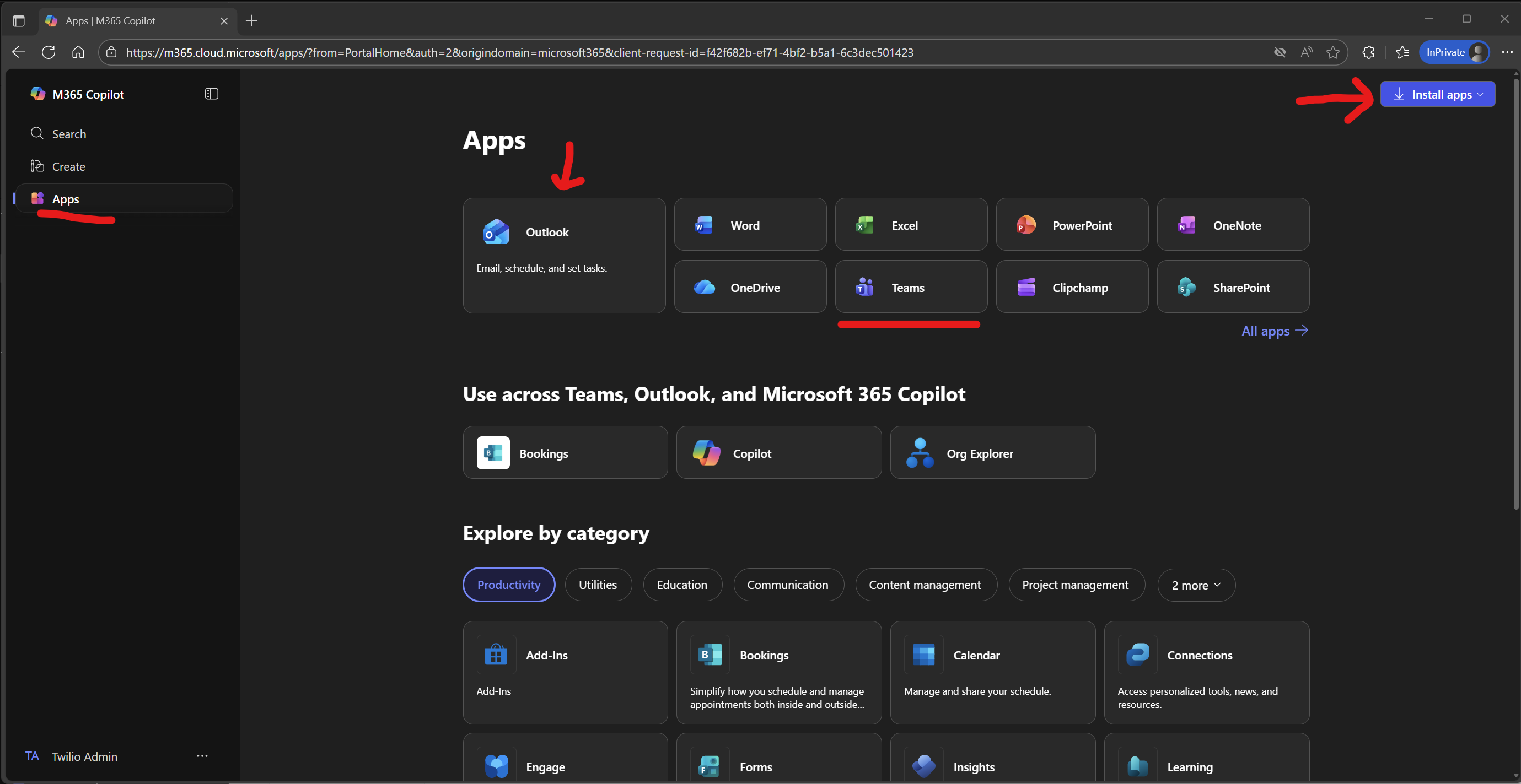
All of the applications that you need can be accessed from the Apps menu on the left hand side. Outlook is your email client. Word and Excel are now your primary office applications. Teams is the collaboration tool that will handle chat, video conferencing, screen sharing and file storage. Feel free to explore the other applications as well. Reach out if you have any questions about them. Bookings is an appointment booking application that can be used like Calendly.com. It allows your contacts to find time on your calendar and manage their meeting with you.
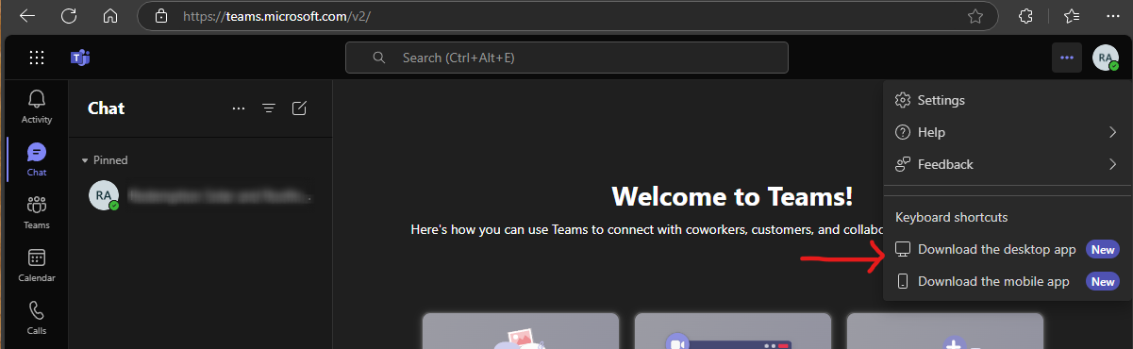
Log in to the Teams application and download the desktop Teams app. It is generally better than the web-based version when it comes to accessing your microphone, camera and speakers. The download link shown below will take you to a web page where you can download the desktop client.
Finally, Teams, One Drive, Outlook, Word and Excel are all available on mobile devices. Navigate to the Google Play Store or the Apple App Store to find the applications and install them. Be sure that they are the applications that are published by Microsoft Corporation. Sign into them using your account credentials. Using the mobile Teams app, will enable video calls to each other and screen sharing across iPhone, iPad, Android, Mac and PC.
Was this article helpful?
That’s Great!
Thank you for your feedback
Sorry! We couldn't be helpful
Thank you for your feedback
Feedback sent
We appreciate your effort and will try to fix the article